Everyone who gets an email from you gets a free, one-click way to find a time with their own group. It takes about a minute to add.
1. Copy the badge
This is how it will look under your name:
Your Name Your Company · (555) 555-0100
2. Paste it into your signature
Click the gear (Settings) at the top right.
Click Account, then Signatures.
Pick your signature, click at the very end of it, and press Ctrl+V (⌘V on a Mac).
Click Save. Check that the signature is chosen for new messages and replies/forwards.
Click File, then Options, then Mail.
Click Signatures…
Select your signature, click at the very end of it, and press Ctrl+V.
Click OK.
Click the gear, then See all settings.
On the General tab, scroll to Signature.
Click at the end of your signature and press Ctrl+V (⌘V on a Mac).
Scroll to the bottom and click Save Changes.
On a phone's mail app the badge may paste as a plain link. That still works.
Share the big card
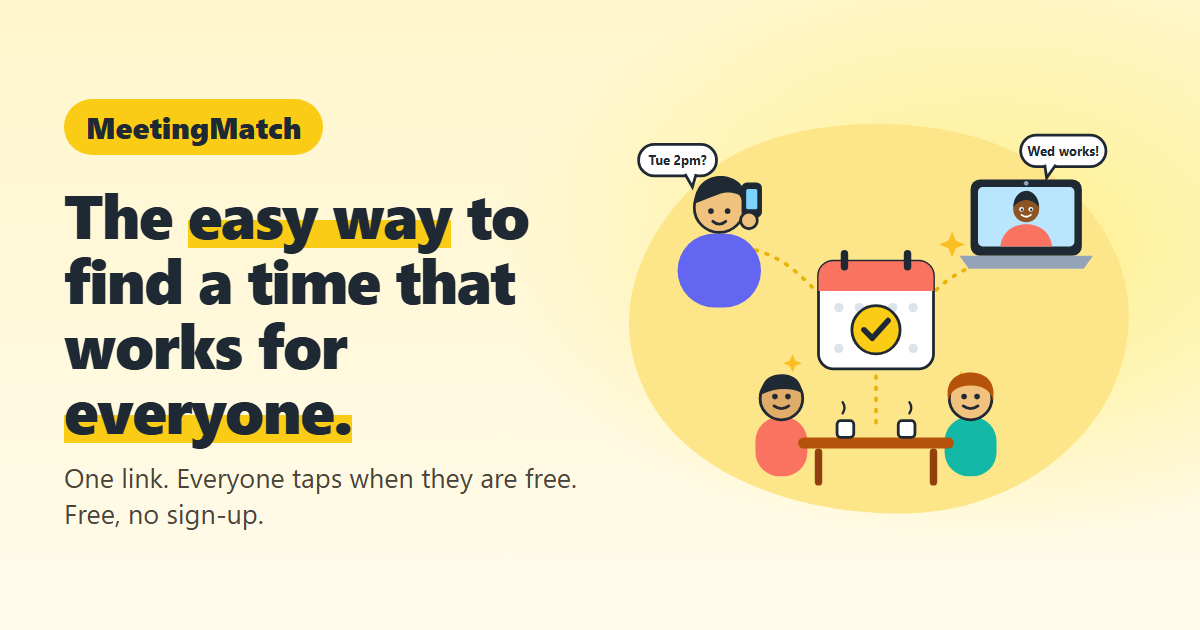
Paste this into an email or document. Clicking the picture opens meetingmatch.app. On Facebook, just paste the link meetingmatch.app and this card appears on its own.